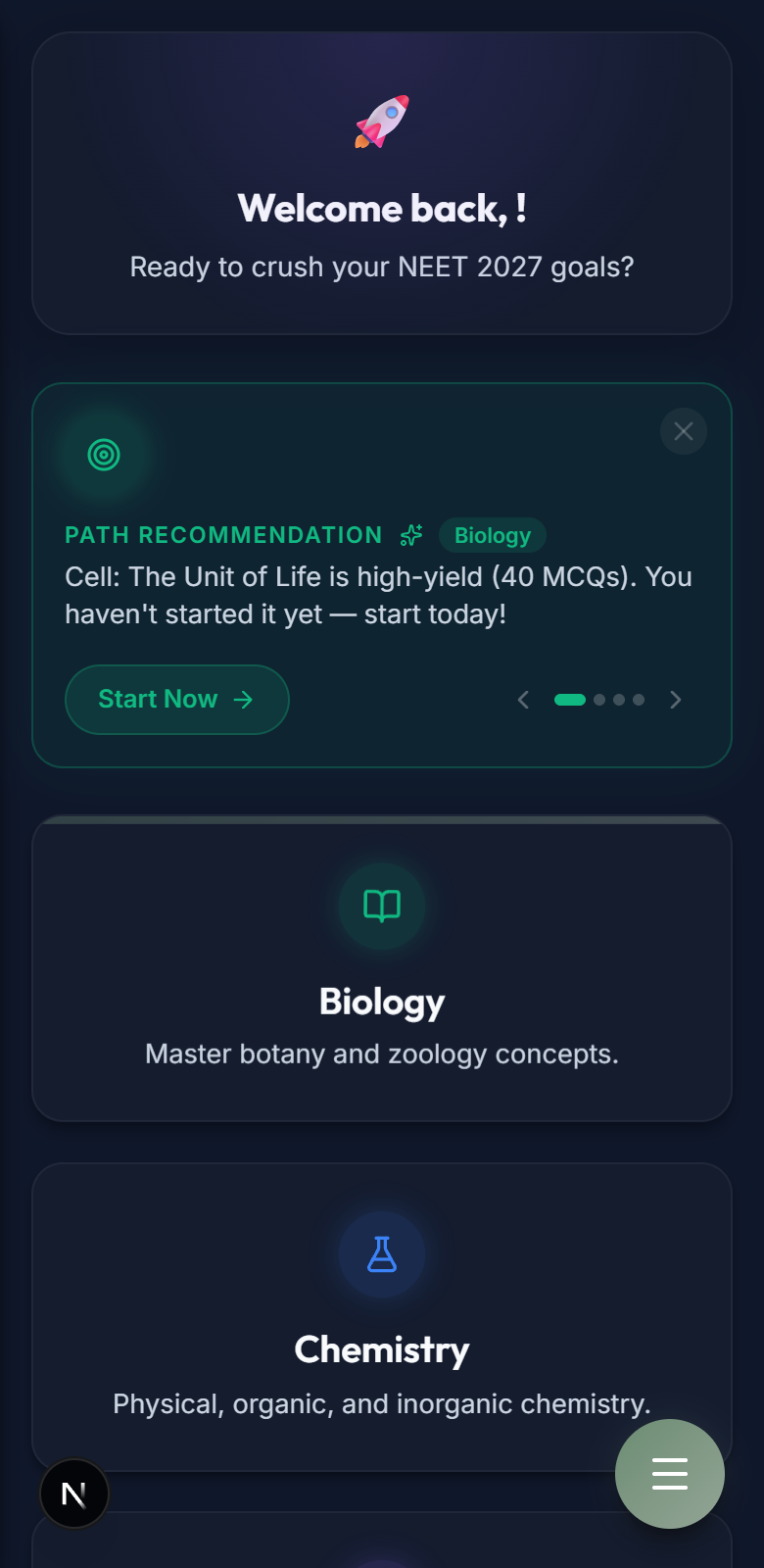
The Study Dashboard
Your main cockpit when you open the app. We designed it to keep you focused on your daily targets without cluttering your mind.
- Daily Streaks: Keeps track of how many consecutive days you reviewed. Maintaining a streak is a great way to stay regular!
- Daily Goal Progress: A visual tracker showing how close you are to your daily target reviews (e.g. 20 cards).
- Subject Selectors: Quick entry points into Biology, Chemistry, or Physics modules.
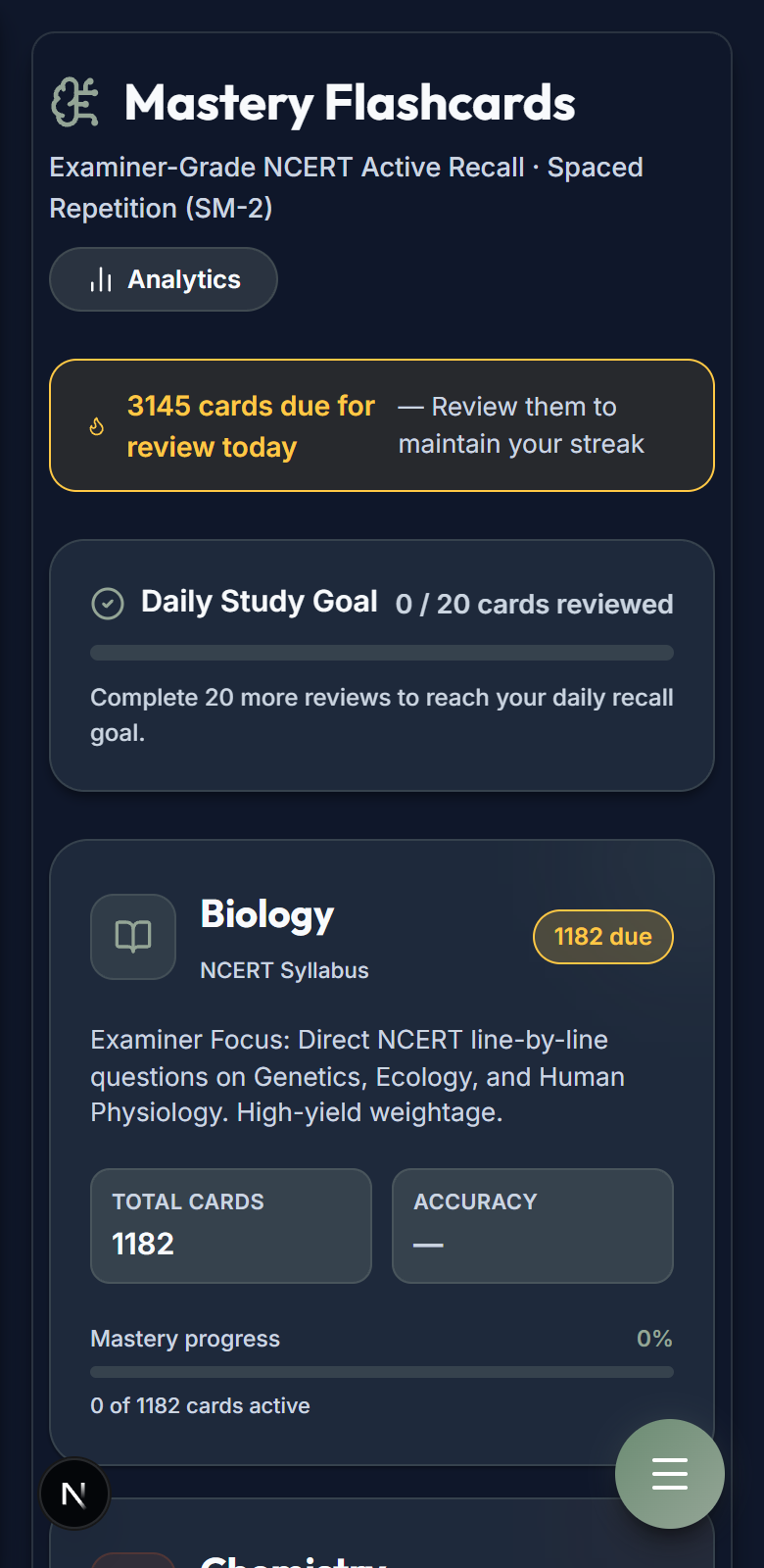
Flashcards Lobby
The lobby lets you choose which subject you want to review. It also displays helpful card metrics.
- Chapter Filters: Select a specific chapter (like Animal Kingdom or Electrostatics) or review the entire subject at once.
- Memory Stats: Shows the total number of cards available, how many are new, and how many are due under spacing guidelines.
- Study Modes: Choose "Review Due" to revise cards that are ready, or choose "New Cards" to add fresh concepts.
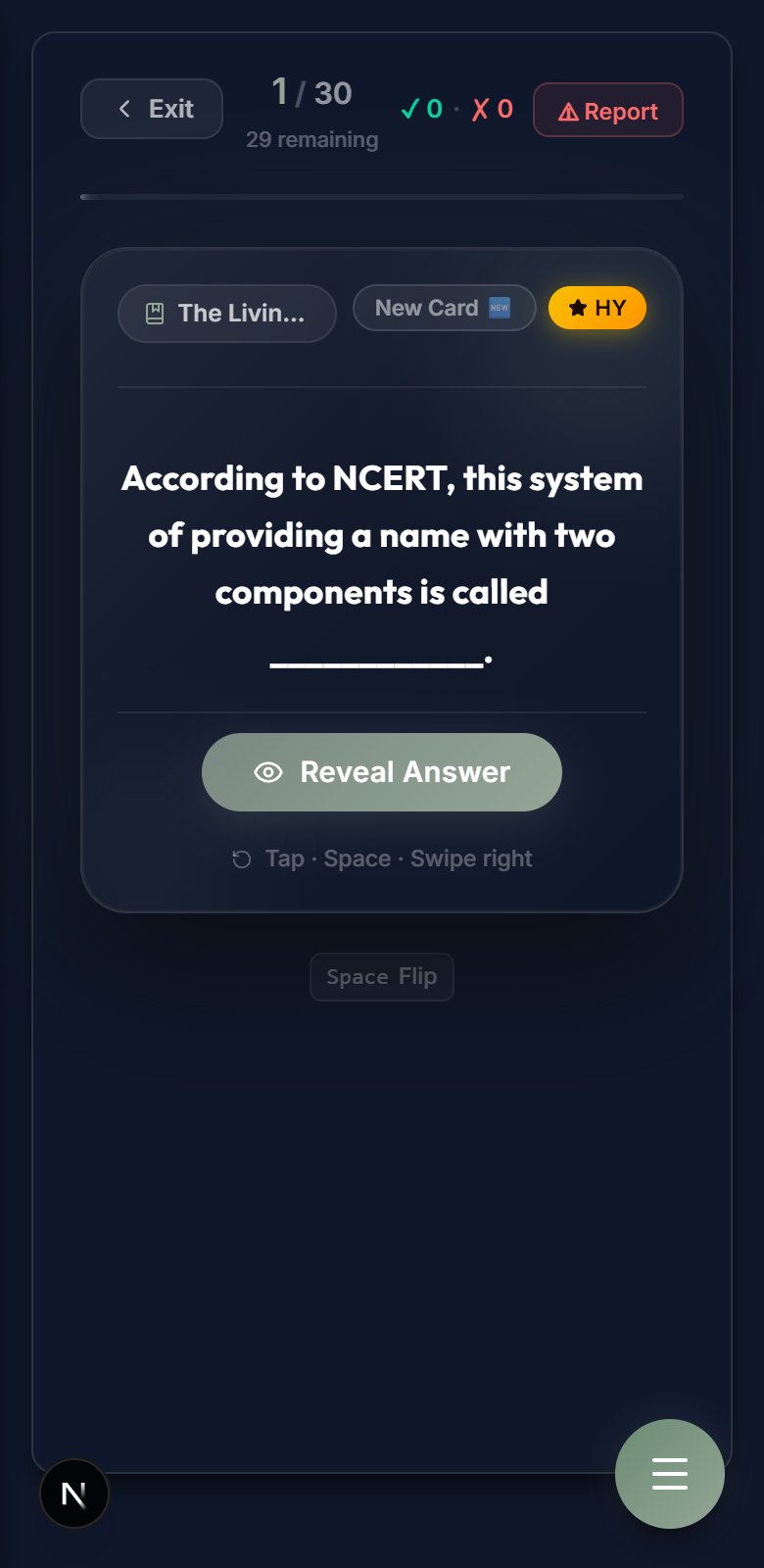
Study Core: Question Card
This is where active recall happens. Instead of passively reading textbooks, you are prompted with direct NCERT line-by-line questions.
- Clear Questions: Sentences built directly from your textbook, focusing on high-yield exam topics.
- No Clutter: Minimalist glassmorphic layout to keep your eyes comfortable and distractions low.
- Self-testing: Read the question, try to recall the answer in your head, then press the Spacebar or click the card to flip it.
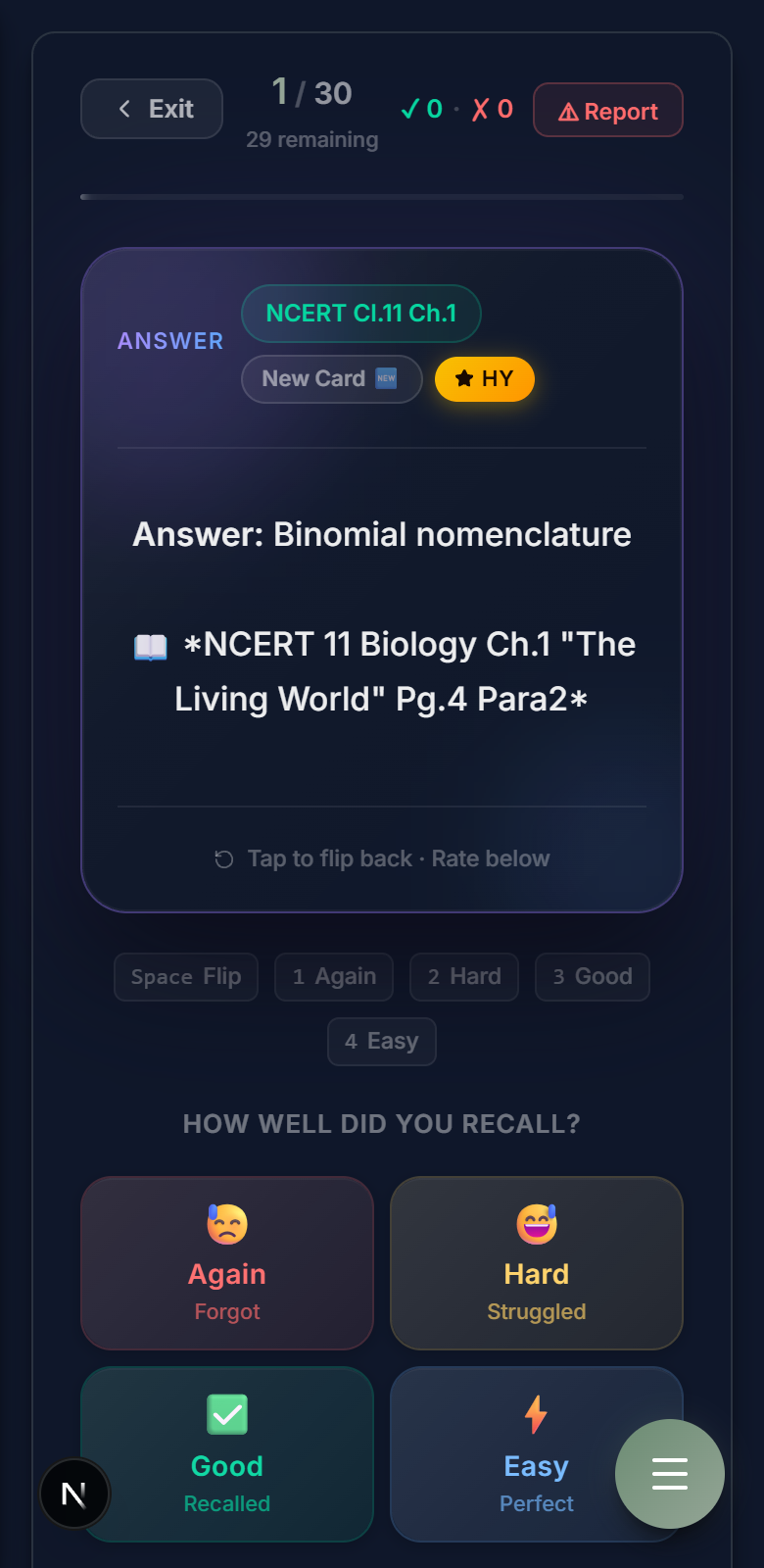
Study Core: Answer & Explanation
Once flipped, the card reveals the correct answer and a complete, student-friendly explanation.
- NCERT Reference Notes: Shows the exact reference details and formula equations (formatted beautifully in LaTeX).
- Self-Rating Buttons: Rate your recall strength (Again, Hard, Good, Easy). This feeds into the SM-2 algorithm to schedule the card's next review time.
- Weakness Logging: Any card rated "Again" is automatically added to your home screen weakness checklist so you don't ignore it.
MCQ Practice Arena
Need to build exam-level speed? The Practice Arena serves timed, multiple-choice questions matching direct NEET patterns.
- Timed Sessions: Helps you train your focus under high-pressure exam speeds.
- Accuracy Meter: Shows real-time correct-to-wrong ratios to track your performance.
- Syllabus Mapping: Questions are balanced across the core chapters of Biology, Chemistry, and Physics.
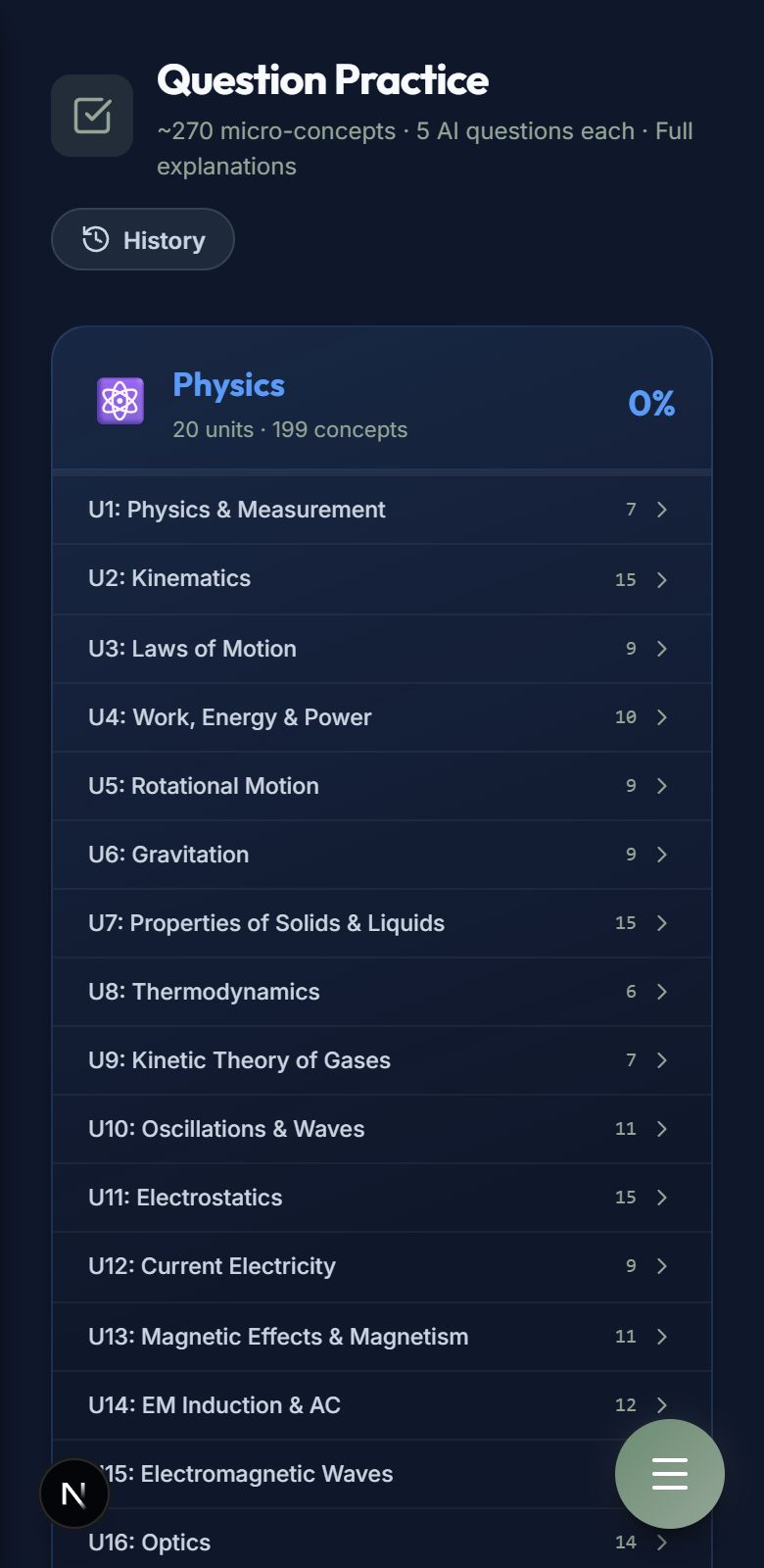
Equation & Formula Sheet
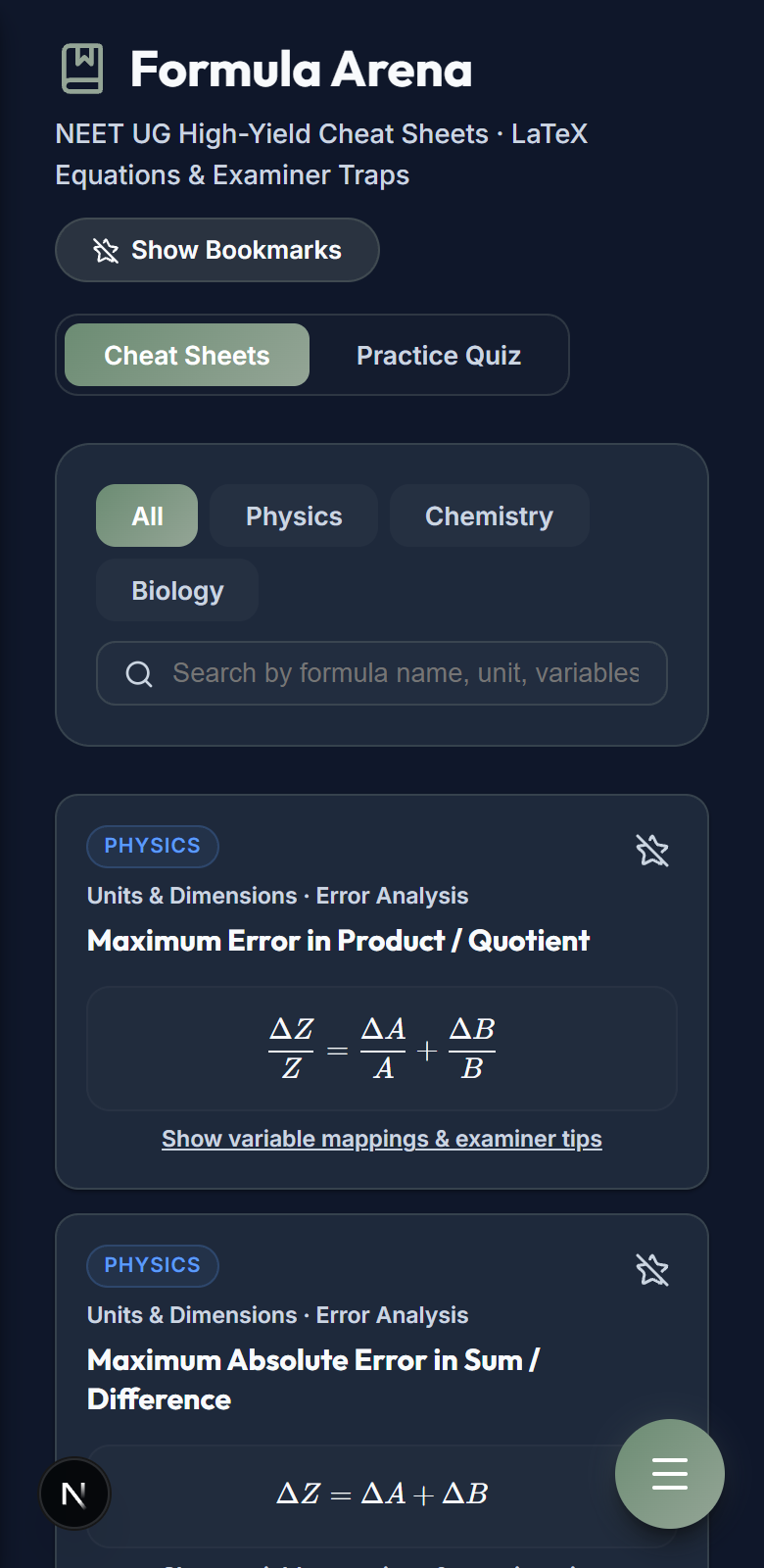
A centralized directory of every important physics and chemistry equation. If you need to quickly revise before a test, this is your best friend.
- Categorized Lists: Equations sorted neatly by subject, chapter, and topic.
- Speed drills: Quickly scroll and test if you remember the variables and units for each equation.
- Clean Math Layout: Rendered with high-quality math styling (KaTeX) for clear readability.
Community Leaderboard
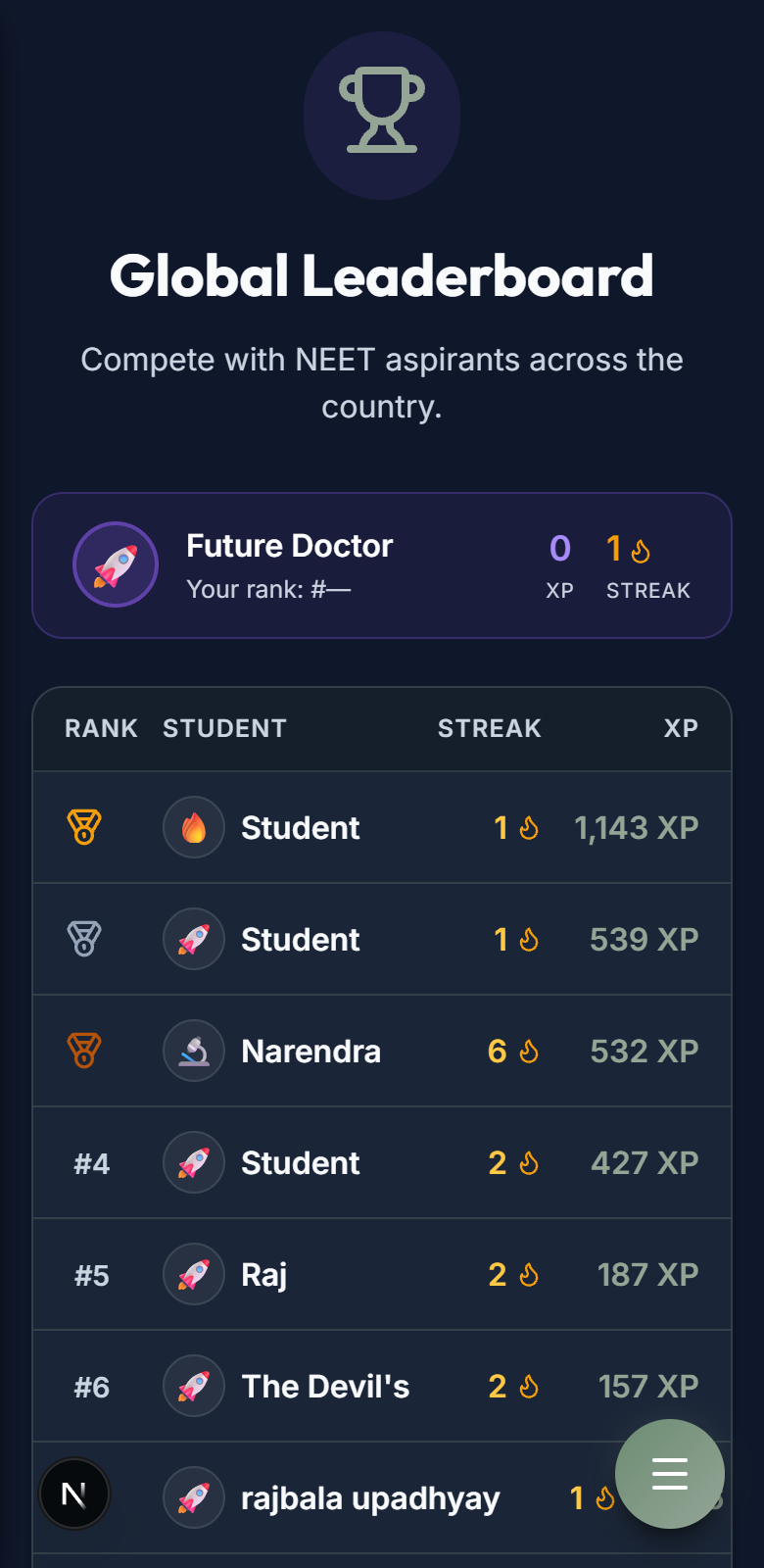
Healthy competition is a great motivator. The Leaderboard shows where you stand in the MEDNEET aspirant community.
- XP Scores: Earn experience points (XP) for reviewing flashcards and getting MCQs right.
- Community Rankings: See rankings of other aspirants in real-time. It keeps you inspired to study a bit more.
- Secure profile alias: Displays only your chosen username and streak emoji to protect your personal identity.
Your Personal Profile
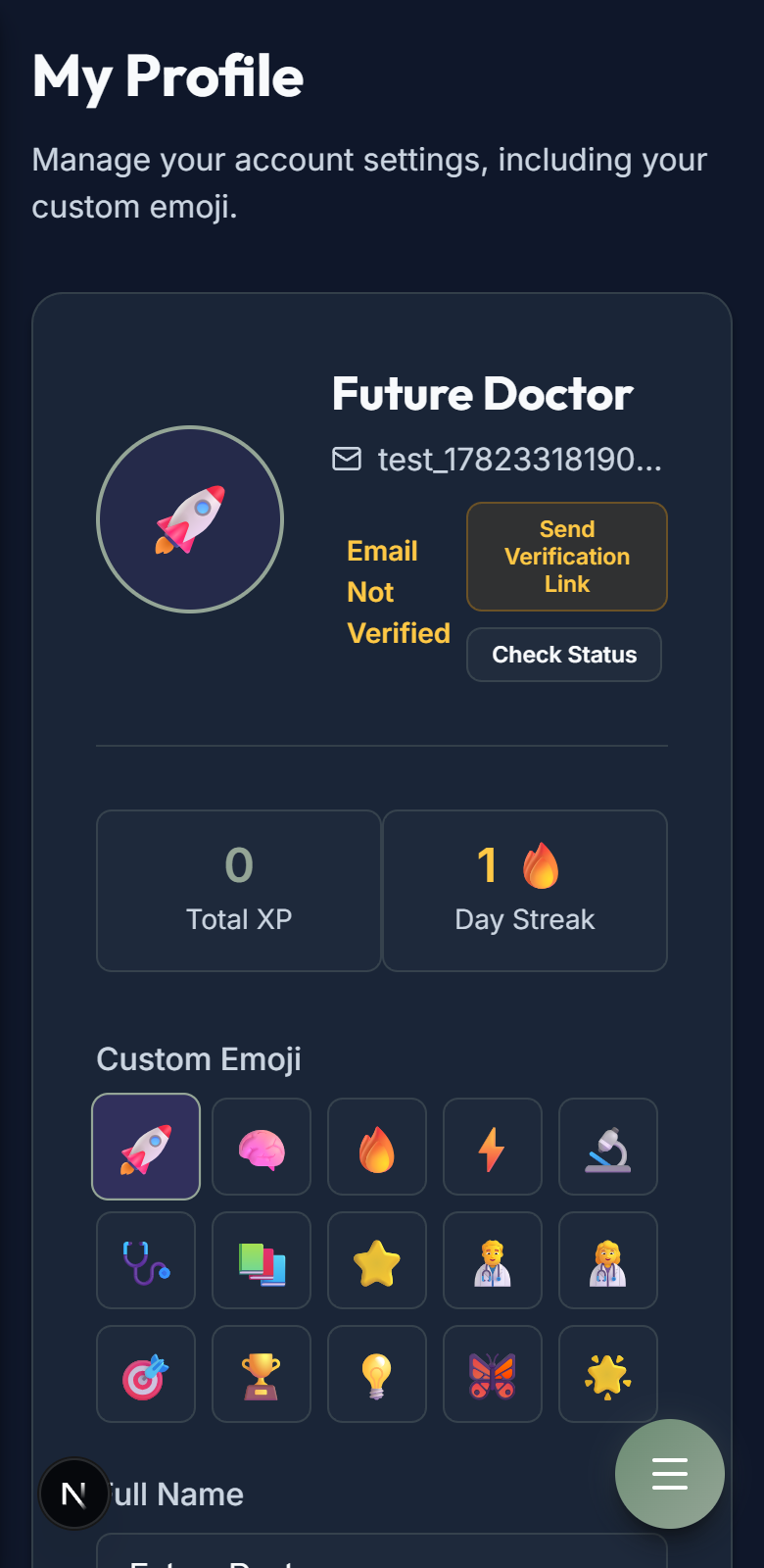
Track your overall consistency over the week and manage your account settings securely.
- Focus Calendar: Visually logs your daily study history and streak milestones.
- AI Settings: Adjust generation preferences or configure keys for custom AI tutor explanations.
- Simple Account Actions: Update your profile display name, verify your email, or securely request account deletion under Account Settings.